Getting Started
This walkthrough takes you from an empty project to a saved OSL JSON dataset. For field-level JSON details, use OSL JSON Format as the canonical reference.
1. Launch
Start the app from the repository root:
You will land on the Welcome screen.
2. Create or Open a Dataset
- Choose Create New Dataset to start with a blank OSL JSON project.
- Choose Load Dataset to open an existing
.jsonfile. - Reopen known files from the recent-datasets list when available.
Keep JSON and media paths together
OSL input paths are usually relative to the dataset JSON file. If you move a JSON file without moving the referenced media folders, playback may fail until the paths are fixed or the dataset is saved again in the expected location.
3. Add Samples
In the Dataset Explorer:
- Click Add Data.
- Select one or more files, or select folders that contain supported files.
- Review the sample rows that appear in the tree.
Selected files become separate samples. Selected folders are treated as
multi-input samples for multi-view workflows. The app stores each input under
data[].inputs[] and infers the input type from the file extension when needed.
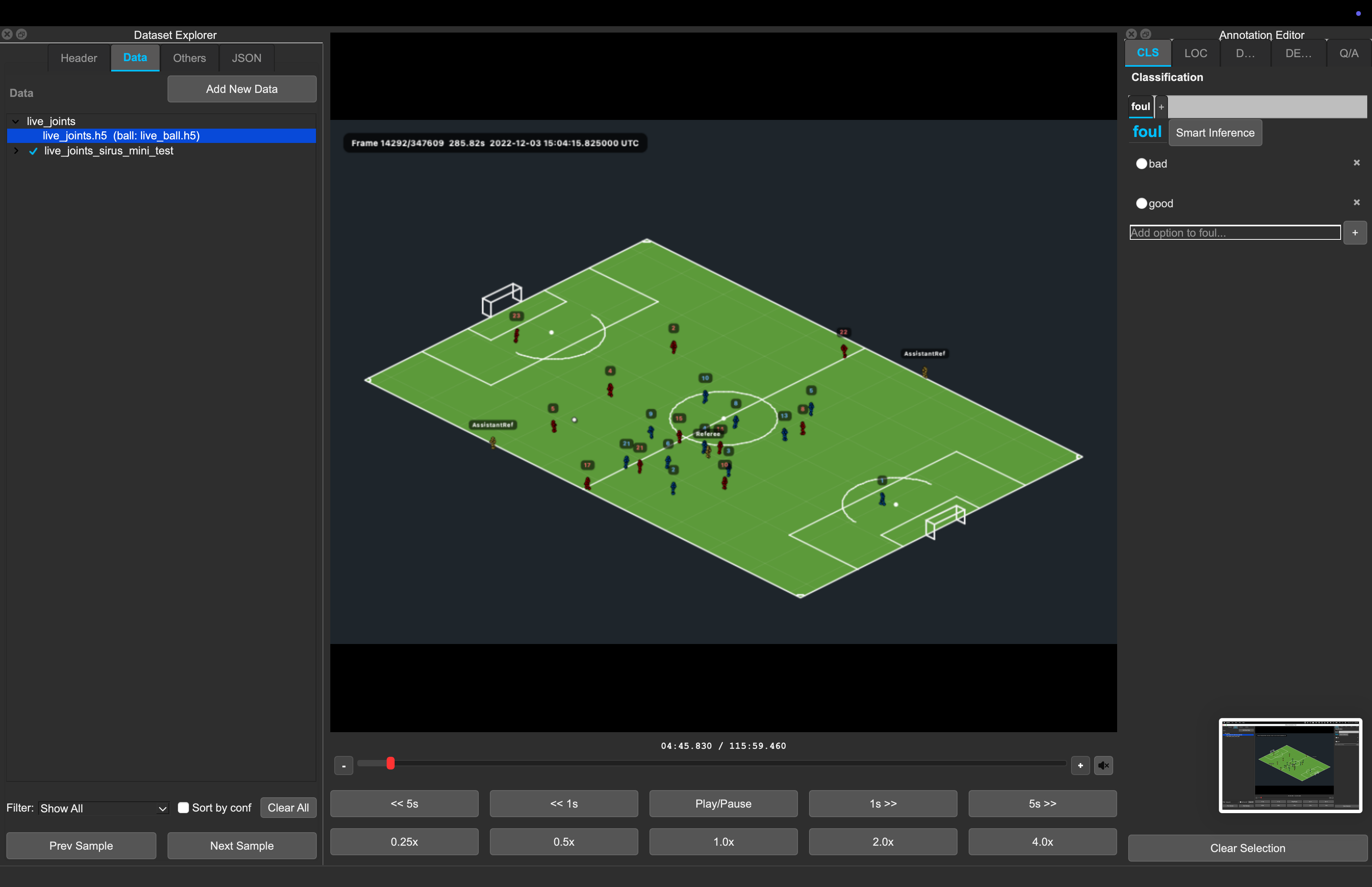
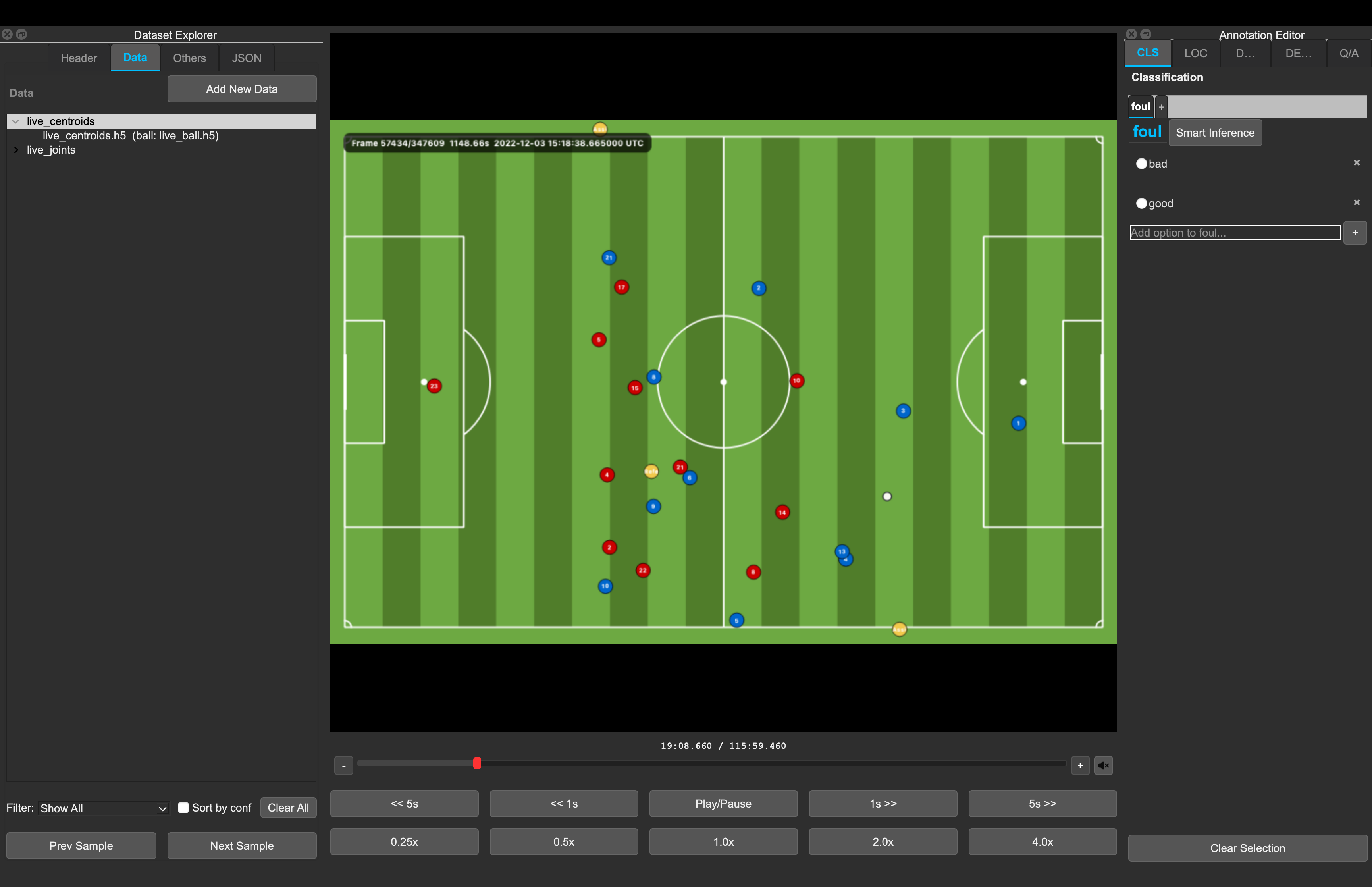
Import H5 Player Tracking
You can add .h5/.hdf5 tracking files through the same Add Data button:
- Joint files with columns such as
<joint>_x,<joint>_y, and<joint>_zare loaded asplayer_joints_h5and displayed as 3D stickmen. - Centroid files with
timestamp_utc,x, andyare loaded asplayer_centroids_h5and displayed from a top-down field view. - Ball H5 files can be selected together with an obvious joint/centroid file, or associated later by right-clicking the H5 input in the Dataset Explorer and choosing Associate Ball H5....
The regular media controls still apply: play, pause, seek, mute, and playback
rate. Timing comes from absolute timestamp_utc values, so H5 inputs do not use
an fps field.
4. Annotate
Select a sample in the Dataset Explorer, then use the right-side annotation tabs:
| Tab | Use it for | JSON field |
|---|---|---|
CLS |
Clip-level classification labels | labels |
LOC |
Timestamped events | events |
DESC |
Clip-level text captions | captions |
DENSE |
Timestamped dense captions | dense_captions |
Q/A |
Per-sample question groups and answers | answers |
See Annotating for the per-mode workflow.
5. Save
- Save Dataset (
Ctrl+S) writes to the current JSON path. - Save Dataset As (
Ctrl+Shift+S) writes to a new JSON path.
On save, the app normalizes sample IDs, removes empty optional task blocks, and
rewrites data[].inputs[].path relative to the saved JSON location when
possible. See Saving and Loading for the full save behavior.
When you close with unsaved changes, choose Save, Save As, Close Without Saving, or Cancel.